
Close Menu
Techripper
  • Latest
  • Tech
  • Artificial Intelligence
  • Gaming
  • Tutorial
  • Reviews
Facebook X (Twitter) Instagram
Techripper
Wednesday, January 28
  • Latest
  • Tech

    Apple launches new AirTag with longer range and louder speaker

    January 27, 2026

    Verizon’s Massive Outage: Over 1.5 Million Customers Affected Before Service Restored

    January 15, 2026

    Apple introduces Apple Creator Studio, an inspiring collection of the most powerful creative apps

    January 14, 2026

    Donald Trump Launches $499 ‘Made in USA’ Phone

    January 13, 2026

    Apple Confirms iPhone Attacks With No Fix for Most Users

    January 13, 2026
  • Artificial Intelligence
  • Gaming
  • Tutorial
  • Reviews
Techripper
Home Blog How to Pin a Message in Instagram
Tech

How to Pin a Message in Instagram

InternBy InternMarch 11, 2025Updated:March 11, 2025No Comments2 Mins Read
Facebook Twitter Pinterest LinkedIn Tumblr Email
Share
Facebook Twitter LinkedIn Pinterest Email

Instagram has recently introduced several new messaging features to enhance user experience. In February, the platform rolled out updates such as message translation, scheduling, music integration, and the ability to pin messages. While these features are common in apps like iMessage and Slack, they are relatively new for a social media platform like Instagram.

Contents
    • Step 1: Select the Message to Pin
    • Step 2: Tap on “Pin”
    • Step 3: Unpin a Message
  • Conclusion

According to a Meta press release, “Last year, we introduced the ability to pin up to three chat threads in your DM inbox, making it easier to find important conversations. Now, you can pin specific messages to the top of any 1:1 or group chat to make it even easier to coordinate, connect with your friends, or revisit content that makes you laugh every time.”

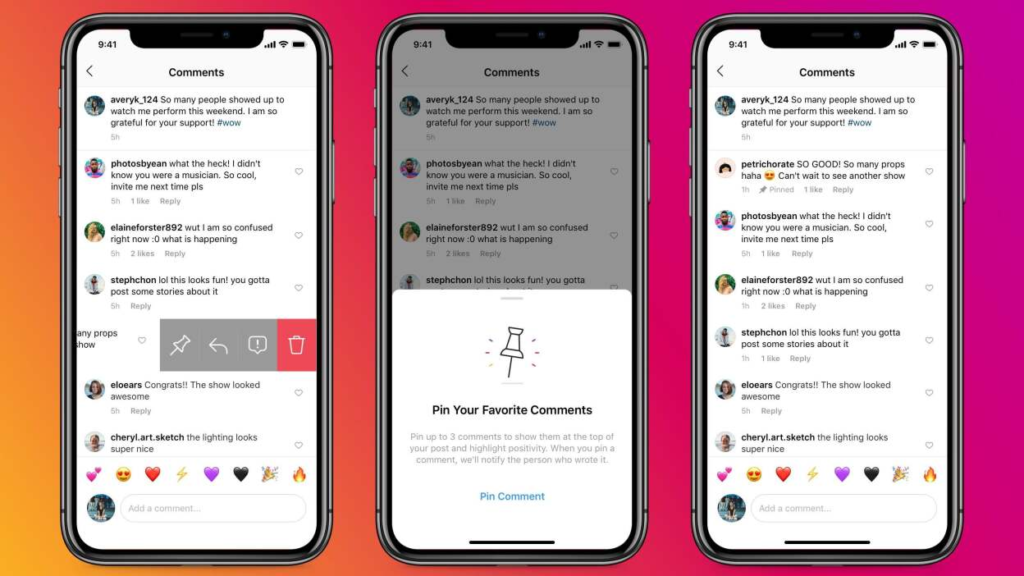
How to Pin a Message in Instagram DMs

Step 1: Select the Message to Pin

Press and hold the message you want to pin. A menu will appear displaying eight options: “Reply,” “Forward,” “Copy,” “Make AI Image,” “Translate,” “Pin,” “Delete for You,” and “Report.”

Step 2: Tap on “Pin”

Select the “Pin” option, and the chosen message will be pinned to the top of your chat, making it easily accessible.

Step 3: Unpin a Message

To remove a pinned message, press and hold the pinned message. When the options appear, select “Unpin,” and the message will be removed from the top of your conversation.

Note: This feature is currently available only on the Instagram mobile app (iOS and Android) and is not yet supported on the desktop version.
Conclusion

Instagram’s new messaging enhancements, including the ability to pin messages, provide users with a more organized and efficient chat experience. Whether you need to keep track of essential details, memorable moments, or important reminders, this feature ensures easy access to key messages.

Also Read : Signal President Meredith Whittaker Warns of Privacy Risks in Agentic AI

Chat Management DM Tips Easy Instagram Hacks IG Tricks IG Updates Instagram Chats Instagram Features Instagram Help Instagram Tips Message Pinning Pin Message Social Media Guide Social Media Hacks Tech Tips
Share. Facebook Twitter Pinterest LinkedIn Tumblr Email
Intern

Related Posts

Apple launches new AirTag with longer range and louder speaker

January 27, 2026

Verizon’s Massive Outage: Over 1.5 Million Customers Affected Before Service Restored

January 15, 2026

Apple introduces Apple Creator Studio, an inspiring collection of the most powerful creative apps

January 14, 2026
Facebook X (Twitter) Instagram Pinterest
  • About
  • Contact
  • Privacy Policy
  • Terms and Conditions
© 2026 Techripper | All Rights Reserved

Type above and press Enter to search. Press Esc to cancel.